
IBO Glass 43: activation codes, EPG guide and a built-in VPN
IBO Glass 43 adds an activation-code tab next to the usual user and password login: the customer types one code and the playlist loads. Real screenshots of that screen, the EPG guide, the VPN picker and the rest of the app.
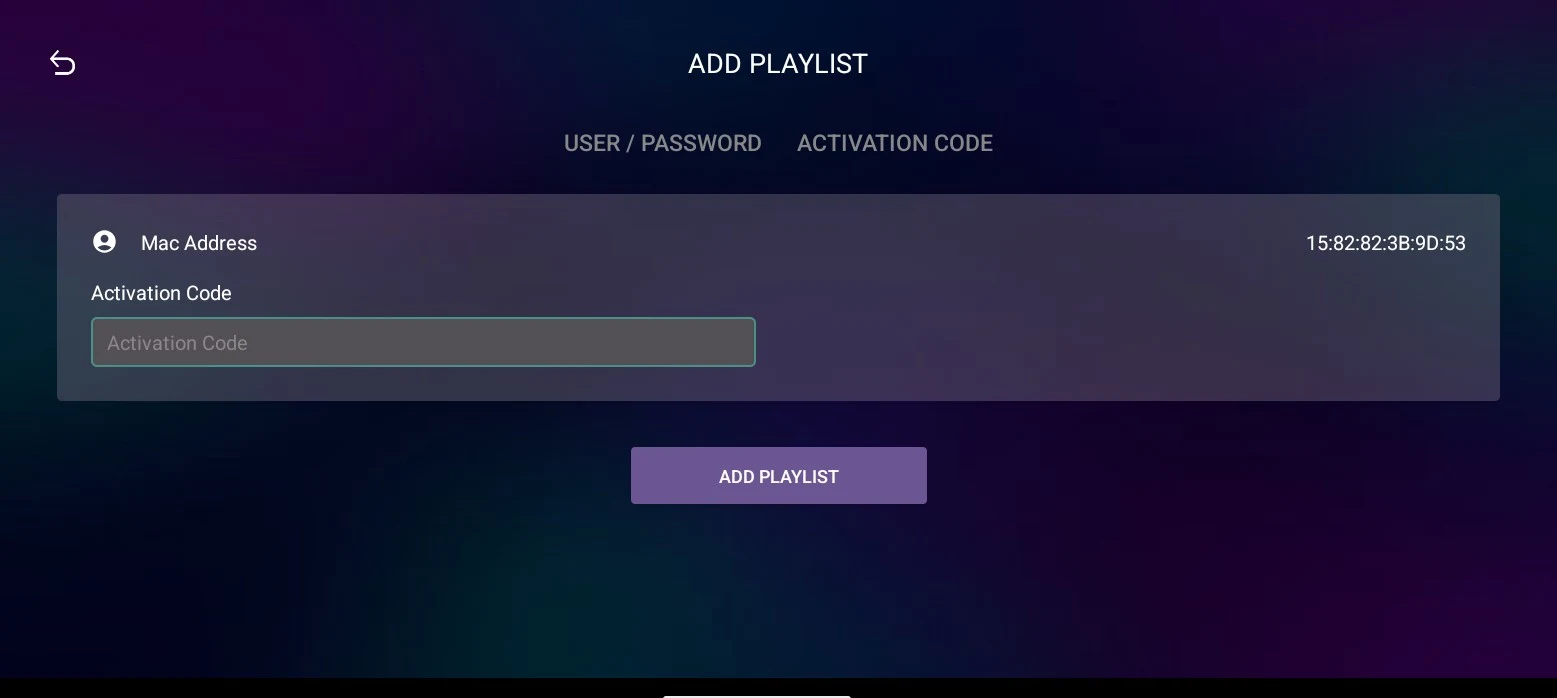
IBO Glass 43 adds a second way to log in. The usual route — server, username and password — is still there, and next to it there is a tab where the customer types a single activation code and the playlist loads. Same login, fewer fields to get wrong.
Everything below is a real screenshot of the app running on a phone, not a mockup.
The home screen
The app opens on a glass-styled menu: a purple-to-blue gradient, translucent cards for Live TV, EPG, Movies and TV Shows, a row of icons along the top, and a large clock with the local weather on the right. The expiry date of the account sits in the top-left corner, so a customer can see at a glance how long they have left.
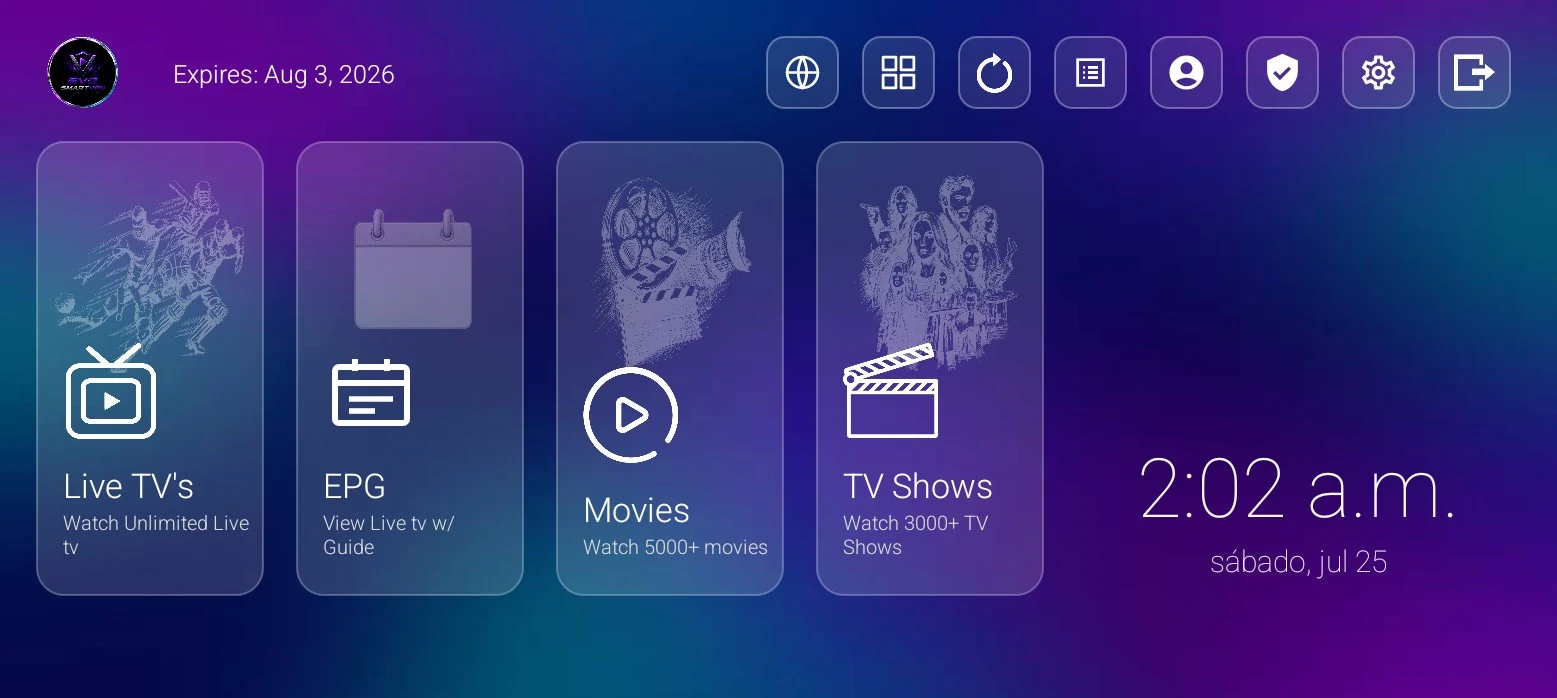
The icon row covers the rest of the app: sports, multi-screen, reload, playlists, account, VPN, settings and exit. On a remote it is one horizontal line of focus; on a phone it is a row of buttons.
Activation codes: one field, done
Open Playlist → Add Playlist and there are two tabs.
The second one, Activation Code, is the reason this build exists. One field, one code, and the list is connected. The customer never sees a server address or a password.
You generate the codes yourself in the panel: pick the DNS, enter the username and password of the line, and the panel gives you a six-digit code. You can make it single-use — it binds to the first device that redeems it, and you can release it later to reuse it — or multi-use, so the same code works as a login for several devices.
The first tab is still there for anyone who prefers the classic route: User / Password, with the server chosen from a dropdown that lists whatever DNS entries you loaded in the panel. Nobody has to type a URL by hand.
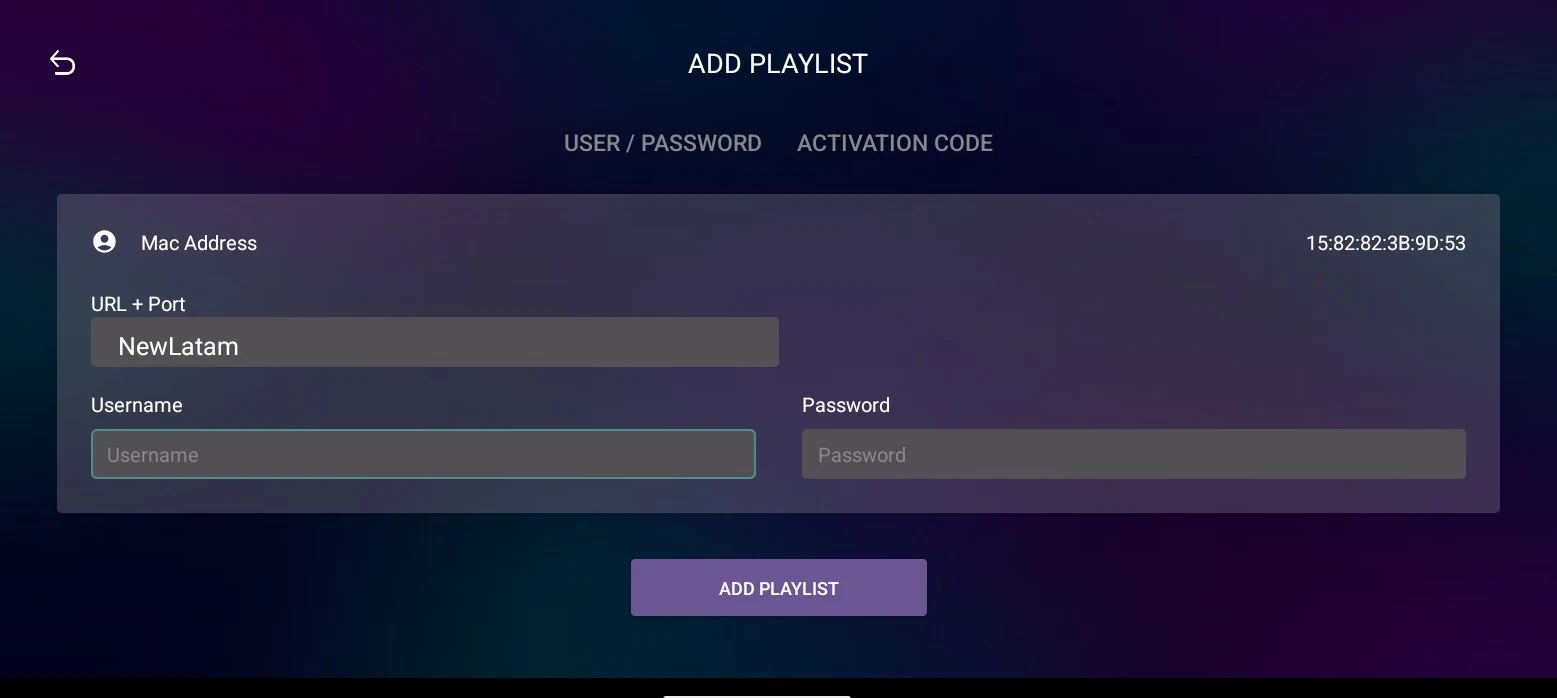
Several playlists can live on the same device at the same time, and switching between them is a tap.
EPG guide over live TV
The guide is a proper timeline: channels down the left with their logos, half-hour slots across the top, and the channel you have selected playing in a preview window while you browse. You can keep watching while you look ahead at what is on.
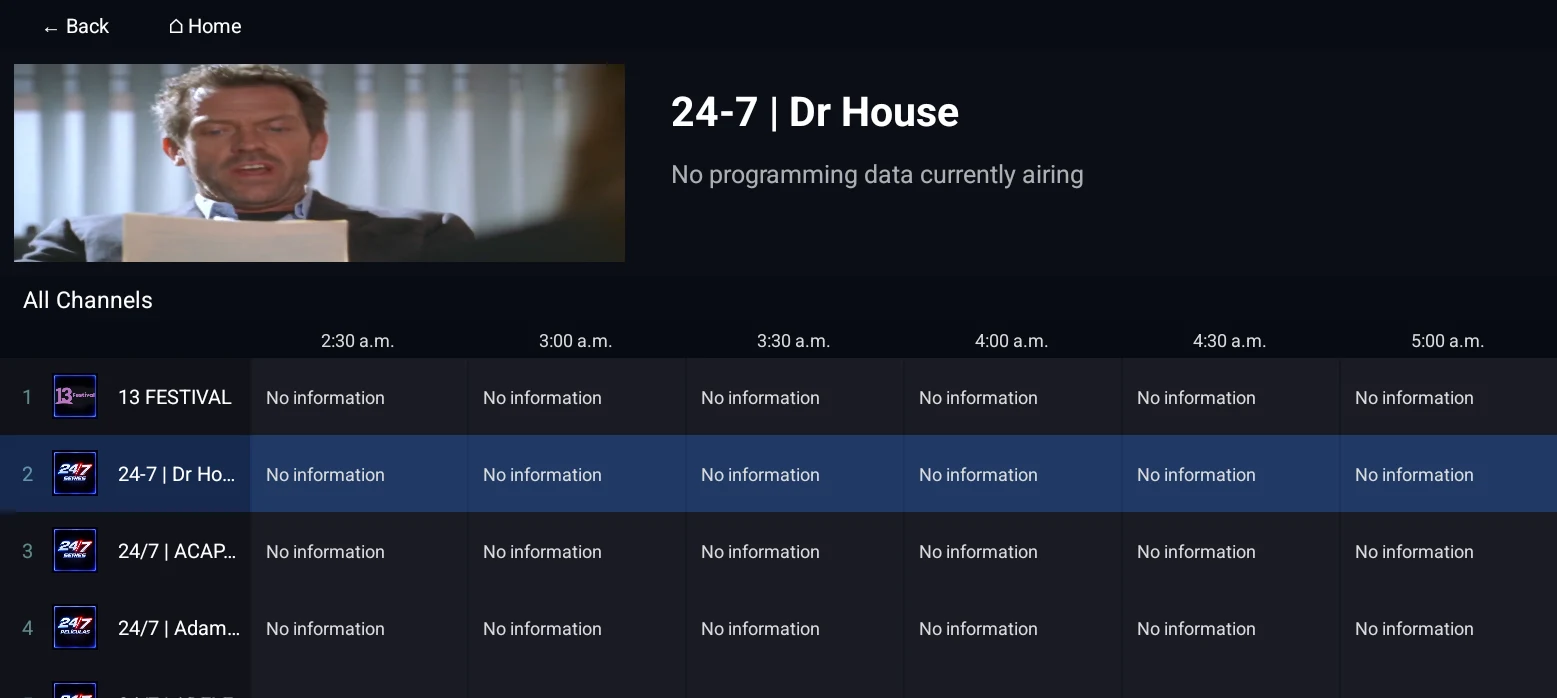
One honest note: the guide fills with programme titles and descriptions when the provider sends EPG data. The line used for these screenshots does not carry it, which is why the cells read "No information" — that is the playlist, not the app.
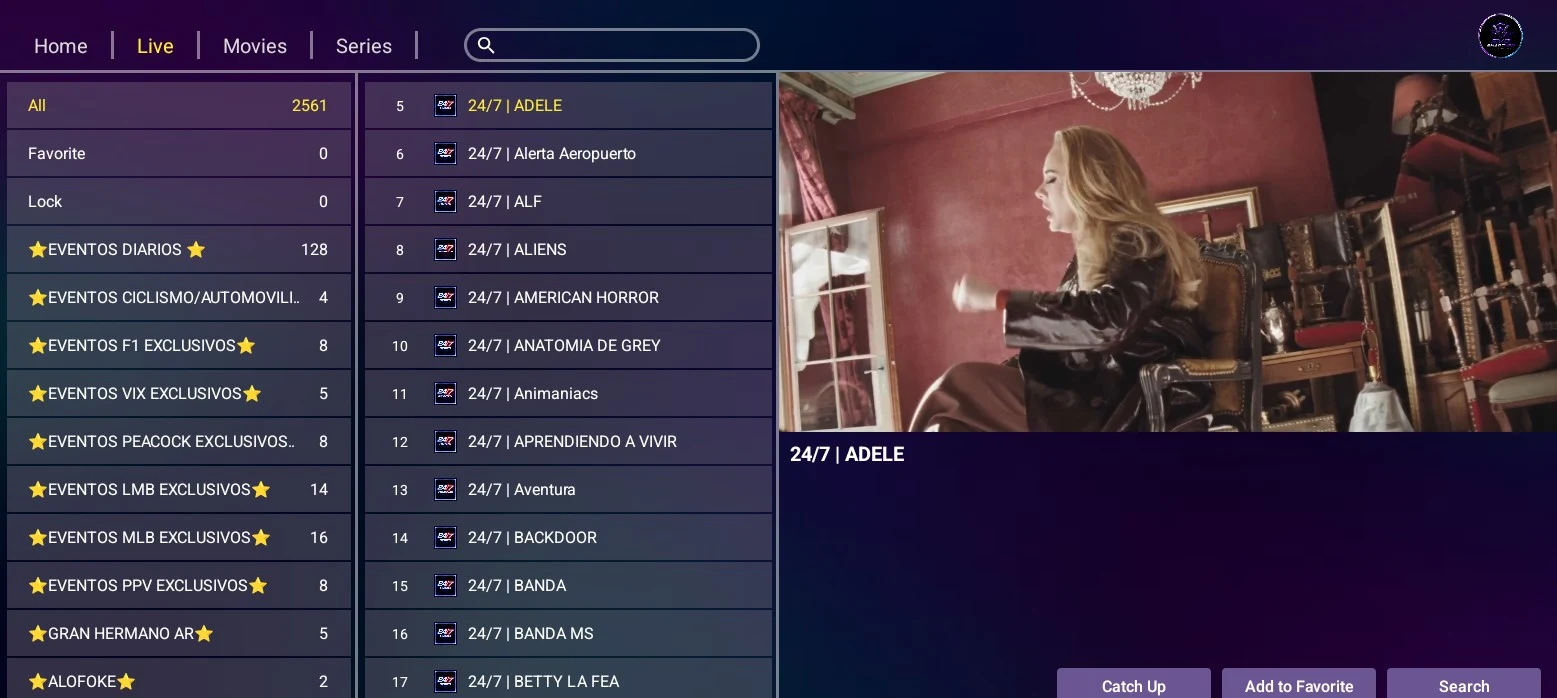
Live TV itself has categories down the side, a channel list in the middle and a preview on the right, plus favourites, channel lock and Catch Up for providers that support it.
VPN inside the app
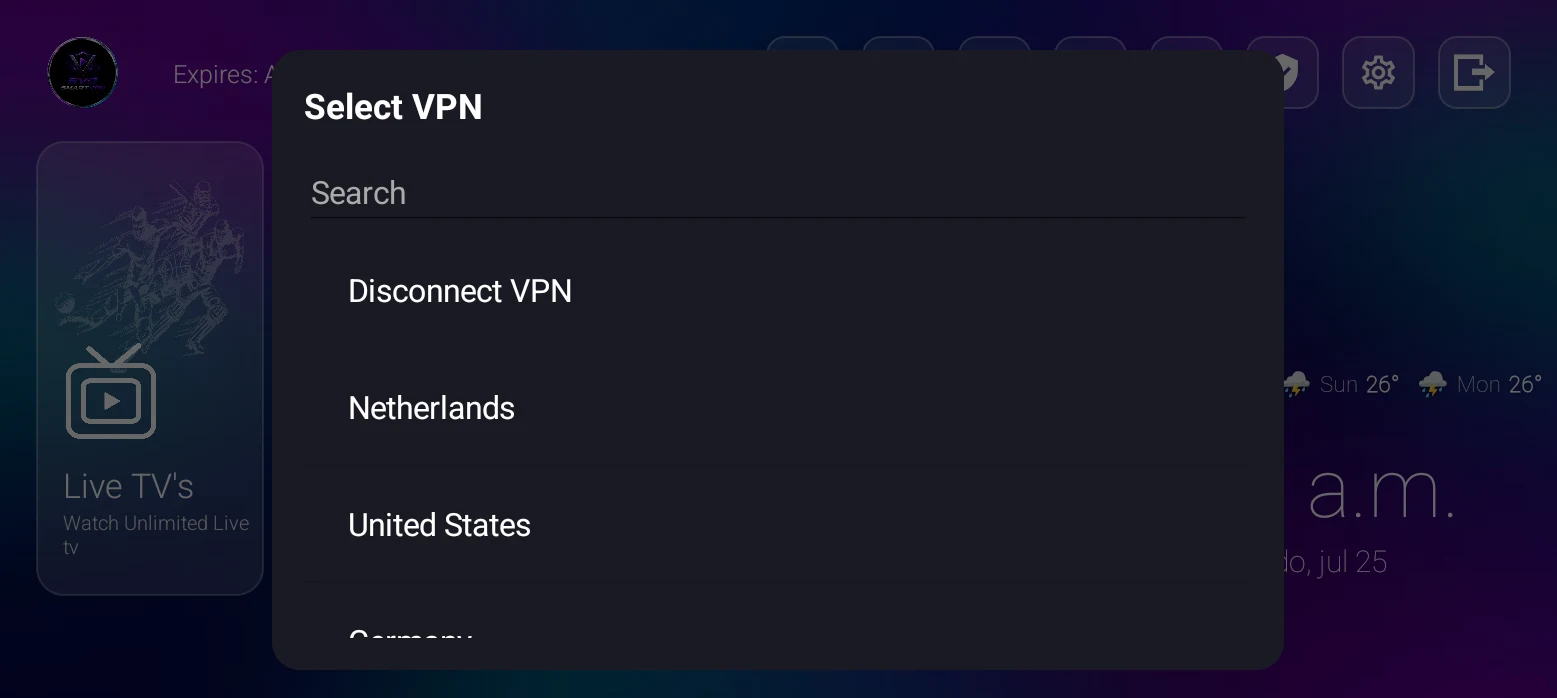
There is an OpenVPN client built into the app, reachable from the shield icon on the home screen. Whatever servers you load into the panel show up in this list, with a search box and a disconnect option at the top — the customer picks a country and connects without installing a second app.
Multi-Screen
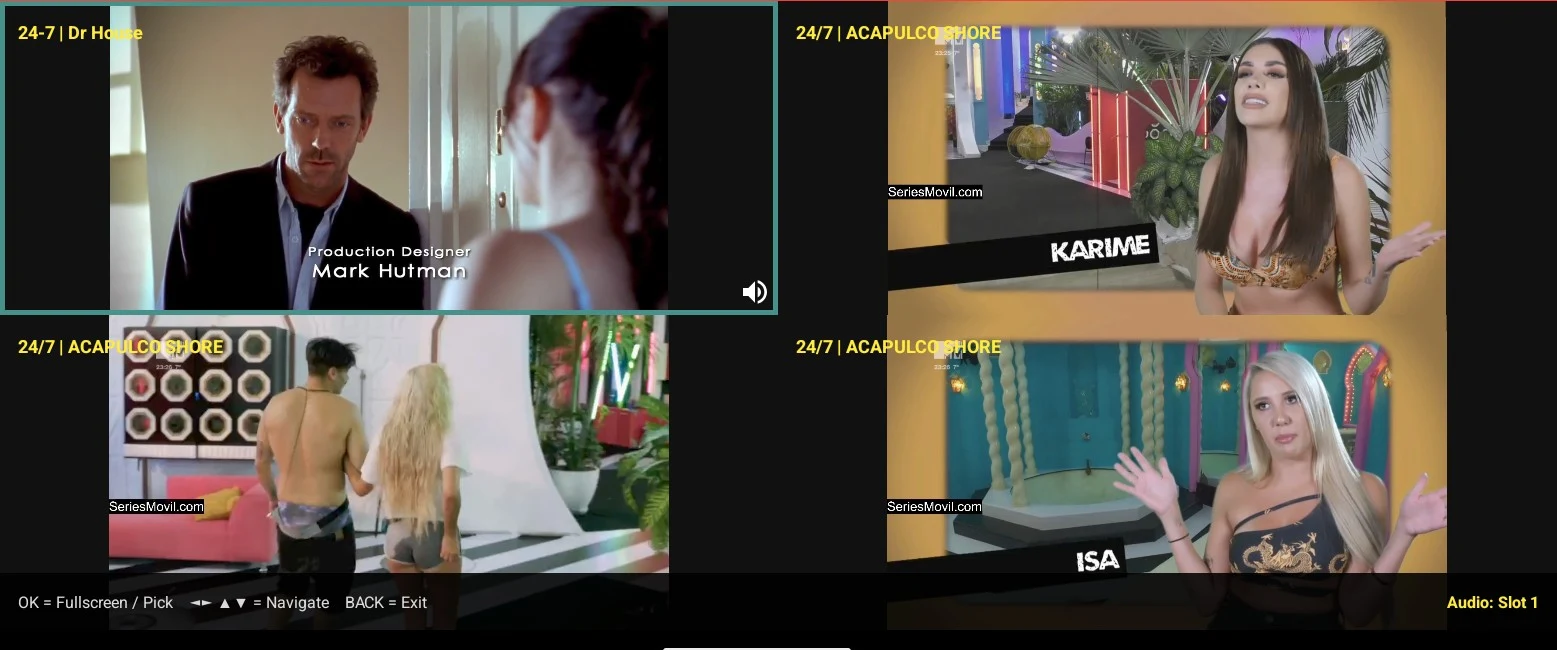
Up to four channels at once, in six different layouts. The selected cell keeps the audio and is outlined in cyan; you move between cells with the arrow keys or a tap, and any cell can go full screen.
Movies and series
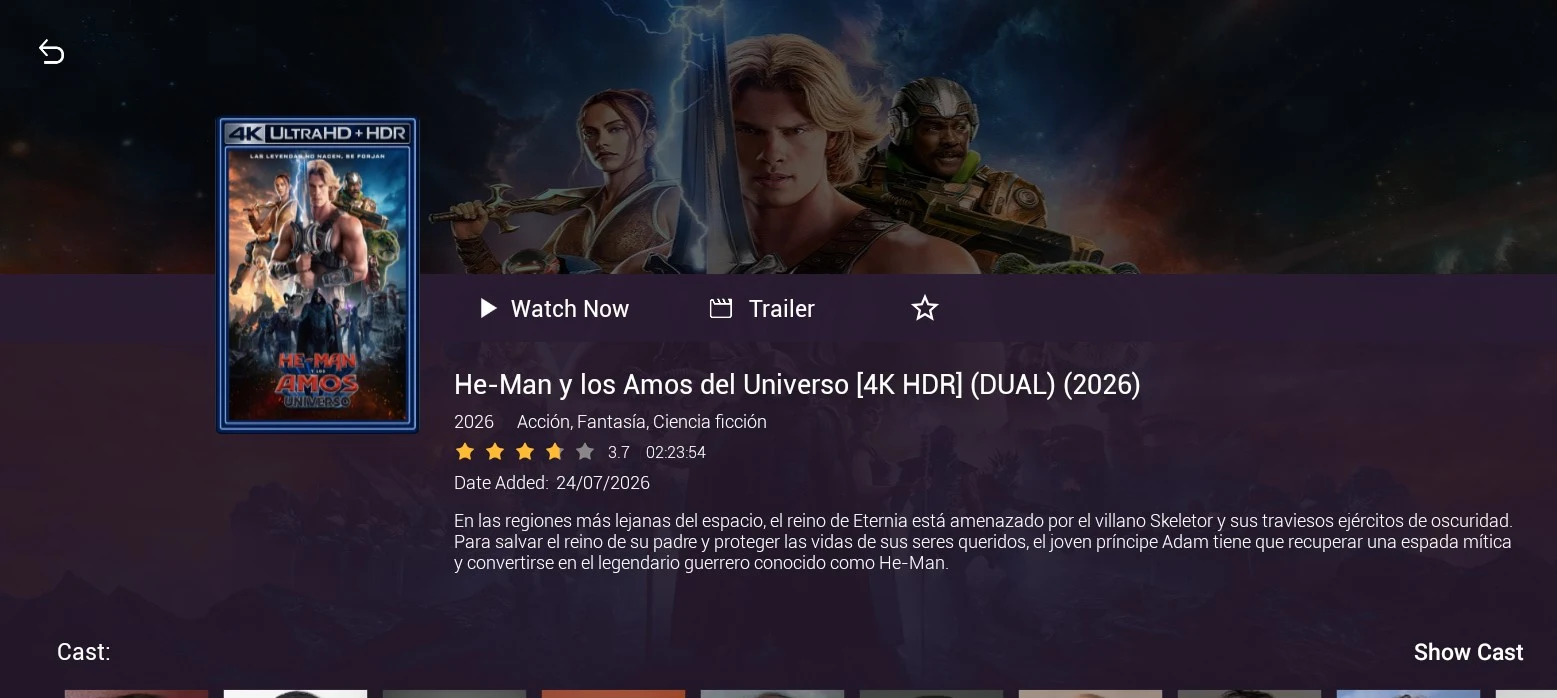
Both catalogues are poster grids with ratings on the artwork and a sort selector. Open a title and you get the full detail page: backdrop, plot, cast with photos, rating, runtime, date added and a trailer button.
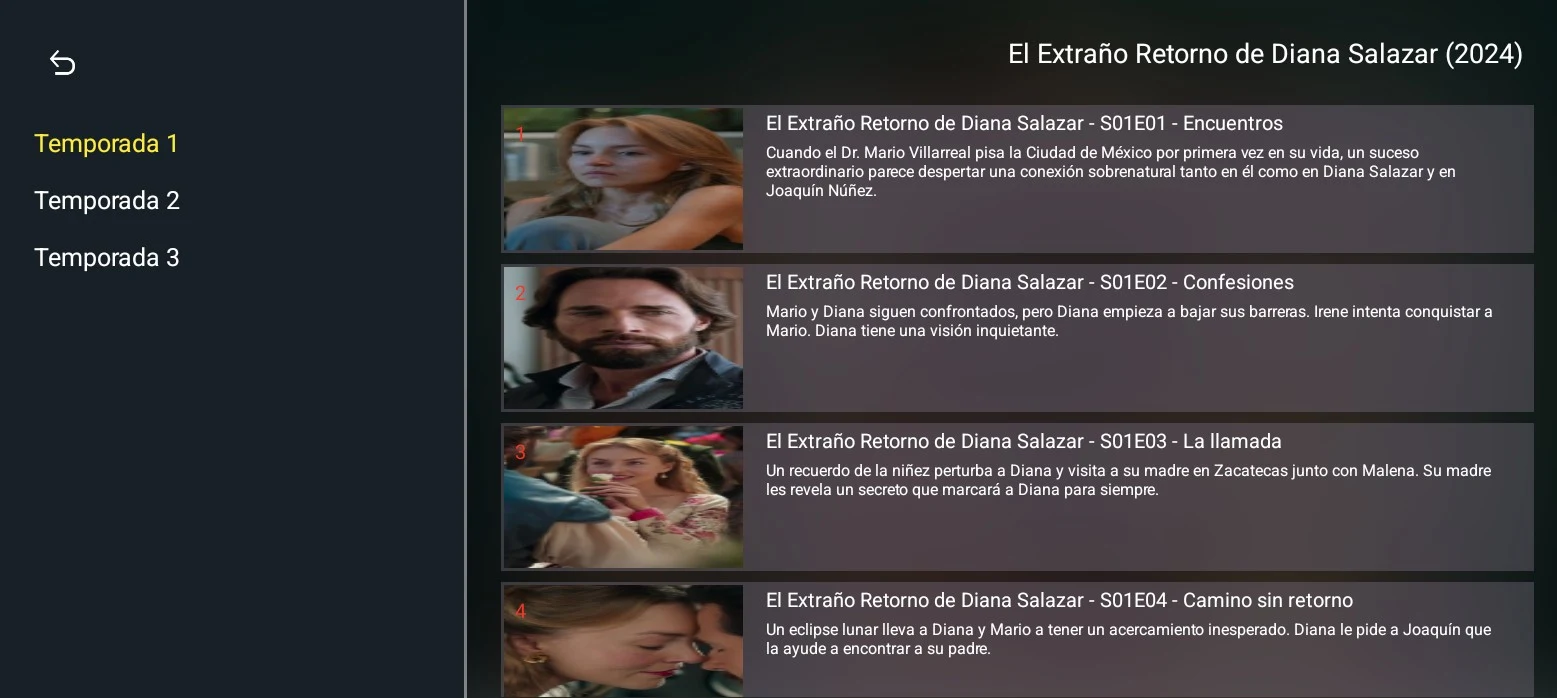
Series are organised by season, and every episode carries its own still and description.
Settings
The settings screen is a grid of everything a customer might need to change: parental control with a PIN, hiding live/VOD/series categories, clearing history, list or grid layout, live stream format, external players (VLC and MX Player), subtitle size and colour, 12 or 24-hour clock, and a TV / Mobile switch that changes the whole interface for remote or touch use.
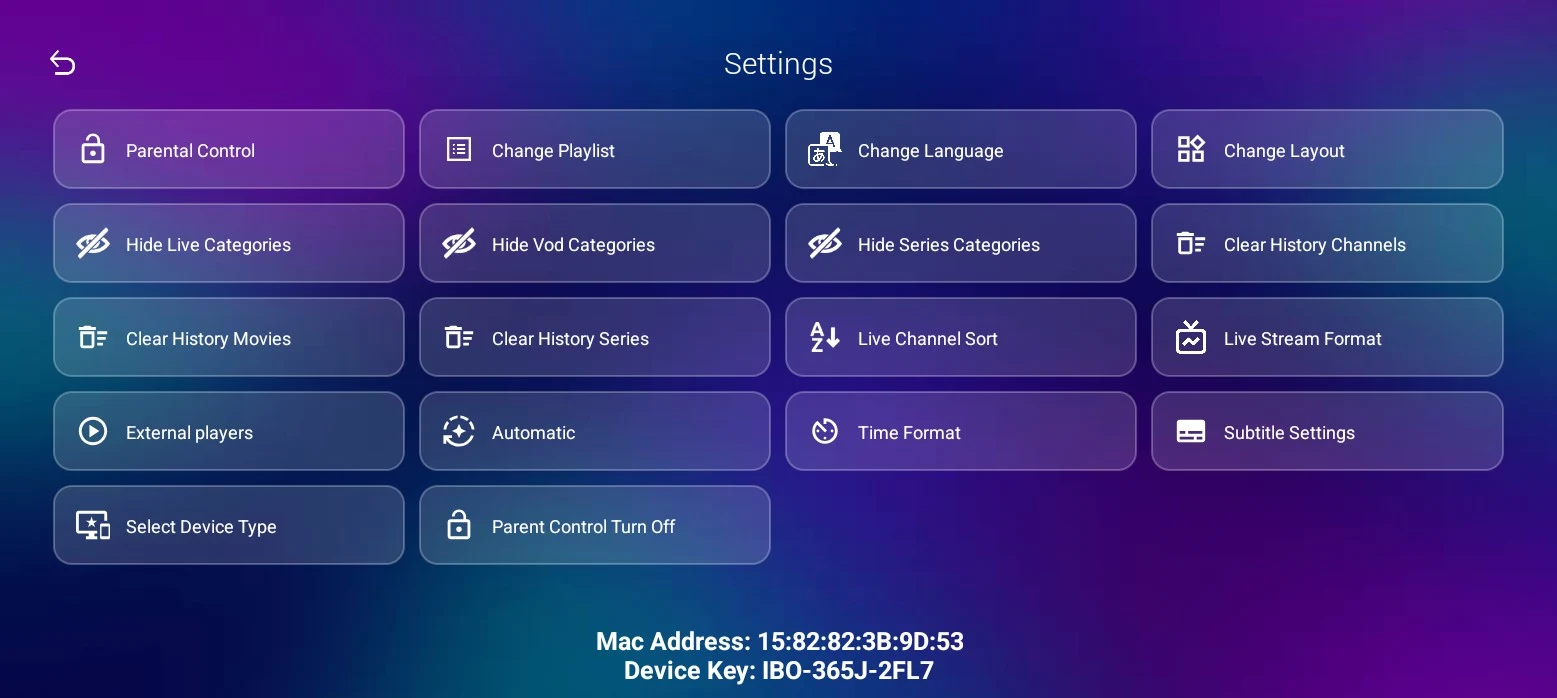
The interface itself is translated into 22 languages, and the language picker is right there in settings — the activation code screen included.
IBO Glass 43 runs on Android, Android TV and Fire TV (Android 5.0+) and covers live TV, EPG guide, movies, series, Multi-Screen, VPN and parental control, with the interface in 22 languages.
Full gallery and specs on the IBO Glass 43 With Activation Codes page.